Guide
Combine Google Calendar and Outlook events into one printable calendar
A common problem: a family or personal schedule lives in Google Calendar, and a work schedule lives in Outlook, and you want both on one printed page. Joly Calendar doesn’t connect to either account, but it can merge exported .ics files from each of them onto a single calendar in your browser.
Steps
- Export your Google Calendar. On a computer (Google doesn’t support export from the mobile app), open Google Calendar’s gear icon → Settings. To export everything, use Import & export → Export, which downloads a .zip containing one .ics file per calendar. To export just one calendar, hover over it under “My calendars,” choose More → Settings and sharing, then Export calendar.
- Export your Outlook calendar. In Outlook on the web, open Settings → Calendar → Shared calendars, choose the calendar and a permission level, then Publish; Outlook gives you an ICS link to download. The classic desktop Outlook app reaches the same kind of export through File → Save Calendar or a right-click → Save As on the calendar. If your menu looks different, search Microsoft’s support site for “export Outlook calendar ics.”
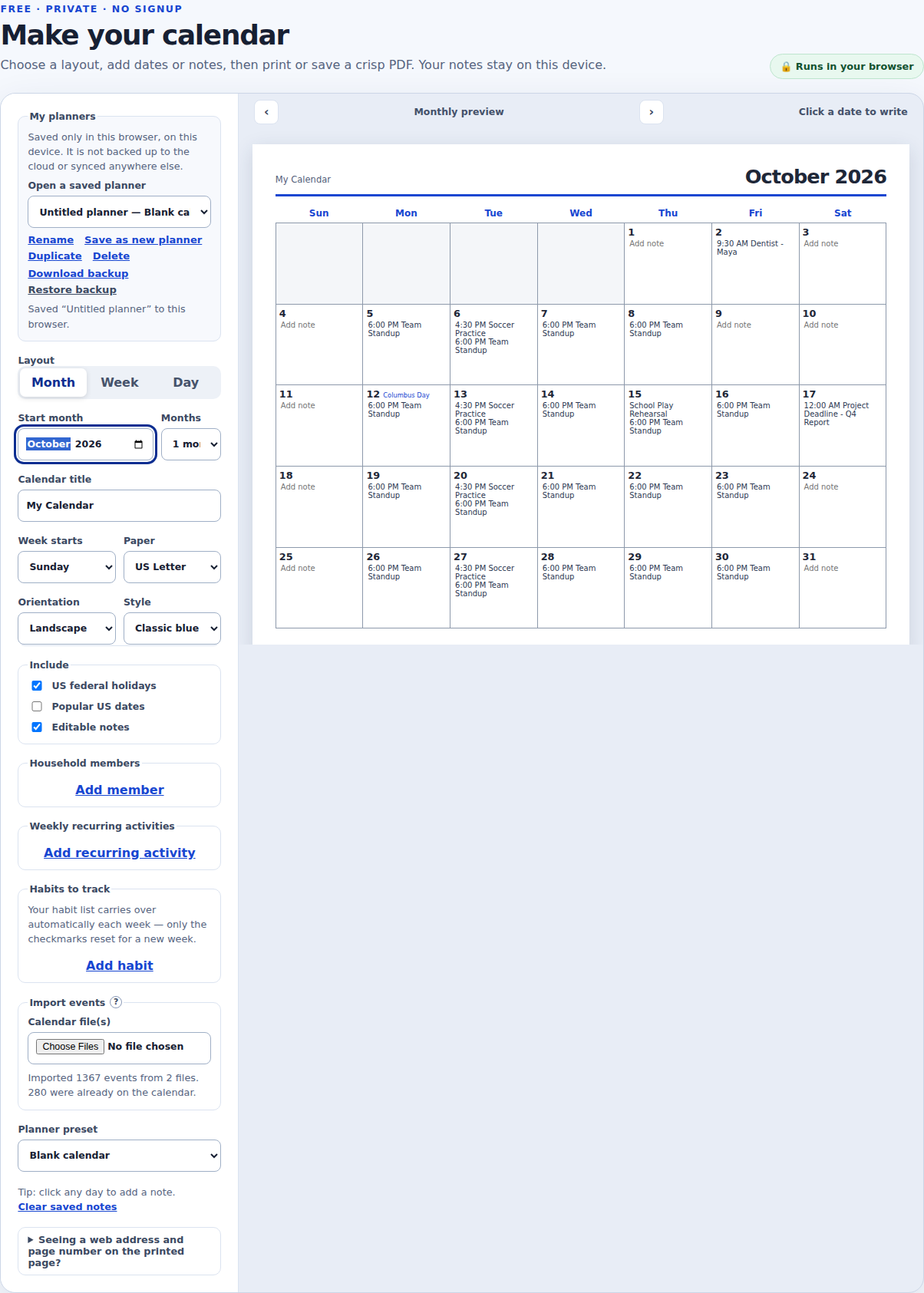
- Upload both files together. On the calendar maker below, open “Import events” and select both .ics files at once under “Calendar file(s)” (the field accepts more than one file). Joly Calendar reads both and merges the events onto the same calendar, matching duplicates by each event’s own ID so the same file uploaded twice doesn’t double up.
- Review, then print or save as PDF. Scroll or page through the months to check both calendars’ events landed correctly, then use Print / Save as PDF or Download PDF.
Good to know before you combine calendars
- This merges two exported files once; it does not keep checking either Google or Outlook account for new events. Export and re-upload both files again whenever you want the printed page brought up to date.
- Each file’s recurring events (a standing meeting, a weekly practice) expand across every year this site currently covers, and a single skipped occurrence recorded in the source file (a cancelled meeting on one date) is carried over correctly rather than showing up as an extra event.
- Times in each file are converted to whatever time zone your device is set to, so events from two calendars line up correctly on the same page even if one export used a different time zone.
- Both files are read locally in your browser; neither is uploaded anywhere, and the imported events are then stored the same way typed notes are, in this browser’s local storage only.
- The “Copy share link” button does not carry either calendar’s imported events, only display settings; see the privacy policy for exactly what a share link contains.
Free · private · no signup
Make your calendar
Choose a layout, add dates or notes, then print or save a crisp PDF. Your notes stay on this device.